A personalized Santa video in the AI Santa Video Generator starts with a Santa portrait and an audio message. Record the greeting yourself, upload a finished recording, or create it with Text to Speech. Then use image lip sync to animate Santa's mouth to that performance.
A correctly pronounced name and a reference to a shared Christmas tradition make the message feel personal. Start with the words, get the audio right, and choose a portrait that gives those words room to show.
See a Santa portrait and its finished greeting
The example below uses the Classic Santa portrait and a recorded greeting for Maya. Compare the source image with the speaking face, beard, and clothing in the result. Play it with sound to hear the name and the complete message.
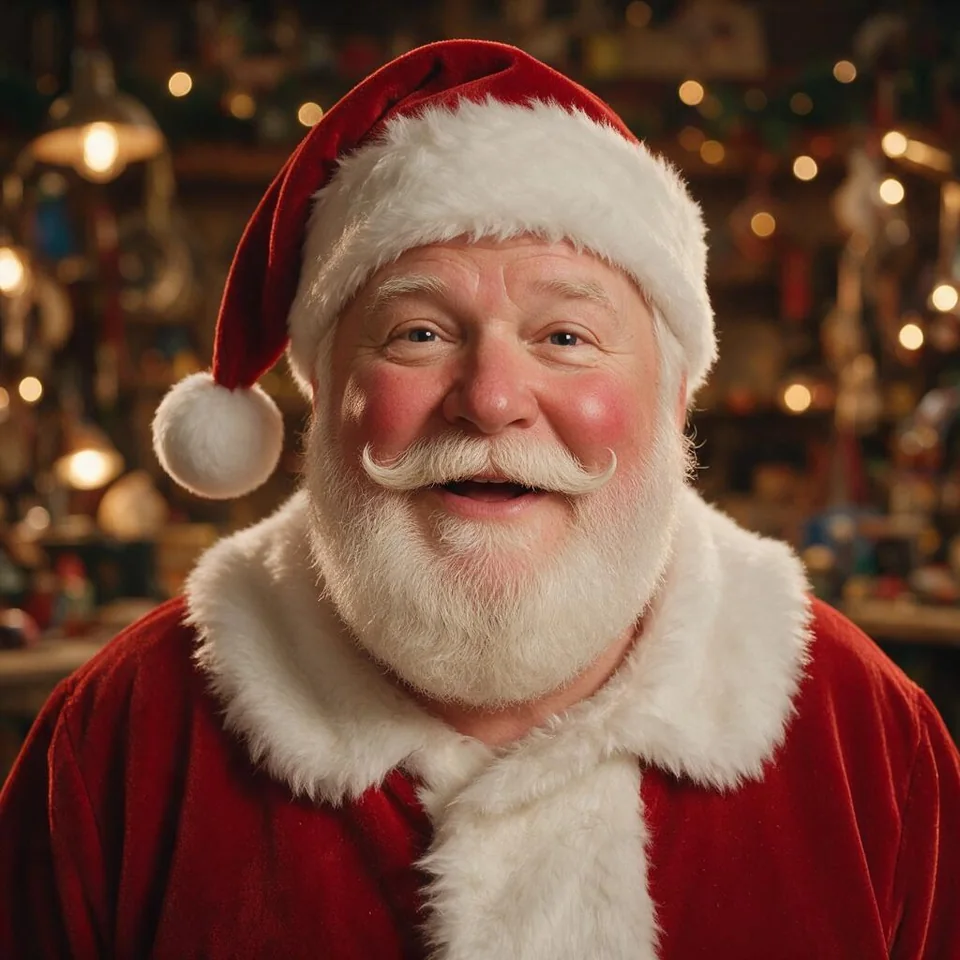
The recording says: “Merry Christmas, Maya. I hope your holiday brings warm hugs, happy surprises, and plenty of laughter with the people you love.” The practice scripts below are separate greetings you can adapt for your own recording.
Write a message that sounds natural aloud
Choose one recipient, one personal detail, and one wish. A greeting that moves between several names, achievements, and instructions can start to sound like a form letter. Read the script aloud once before opening a generator. Shorten any sentence that makes you run out of breath.
These are original practice scripts you can adapt. Their length on screen will depend on your delivery and pauses.
A short greeting for one person
Merry Christmas, Maya! I hear the paper stars are already hanging in your window. Keep one little wish for yourself tonight, and have a wonderful Christmas morning. With warm wishes from Santa.
The window detail gives this version a specific recipient. Replace it with something you know, such as decorating a tree or baking gingerbread. Use a detail the recipient will recognize without putting private information into a recording.
A family message
Hello, the Park family! I hope the kitchen smells of something delicious and everyone has found a place by the tree. Thank you for making time for each other this year. Here's to a Christmas full of good stories, second helpings, and a little peaceful time together. Merry Christmas from Santa!
For a family greeting, let one name stand for the group. If you want Santa to name each person, slow that sentence down and listen for every name before generating the video.
A message for someone far away
Merry Christmas, Leo. Even from far away, you're part of the celebration here. We're saving your place at the table and sending you a big Christmas hug. I hope you find a cozy moment, a favorite song, and a good reason to smile today. Until we're together again, warm wishes from Santa.
Choose a tone the recipient would enjoy. A quiet, affectionate greeting can work better than a booming performance, especially when the message will be watched through a phone speaker.
Choose how Santa will sound
Open the AI Santa Video Generator and find the audio input. The available sources include Upload, Text to Speech, and Record. Pick the source that gives you the performance you want.
| Audio source | When to use it | What to check first |
|---|---|---|
| Record | You want your timing, warmth, or an in-joke in the delivery | Room noise, volume, and the first and last words |
| Upload | You have already prepared a greeting or a song | The correct file version and a clear lead voice |
| Text to Speech | You want to turn a written greeting into spoken audio | Names, sentence rhythm, and awkward pauses |
For a recording, speak in a quiet room and keep the microphone a consistent distance from your mouth. Leave a small pause between thoughts. Listen to the complete file with headphones and then through the device you expect the recipient to use.
With Text to Speech, generate the greeting and check it before making the video. If a name sounds wrong, try a phonetic spelling in the audio script or record that greeting yourself. Keep the person's normal spelling in any accompanying message or caption. Changing the portrait or motion prompt cannot repair a name that is already wrong in the audio.
If you want a singing Santa
If you already have a recording of a Christmas song you are allowed to use, upload a short passage with a clear lead vocal. Trim a quiet or instrumental opening if you want Santa to start singing as the clip begins. Listen to the edit so the first sung word remains intact.
Ordinary Text to Speech creates spoken delivery. For a song, the audio needs to contain the melody and sung performance. If you want to record something new, sing these original practice lines to a tune you make yourself.
A little light upon the tree, A Christmas wish from you to me. Across the miles, both near and far, Warm wishes travel where you are.
For an initial test, choose a passage where the voice is easy to hear above the accompaniment. Check how the portrait follows that vocal before moving on to a longer passage.
Pick a portrait with a readable mouth
The Santa workspace provides sample portraits, including Classic Santa, Fireside Santa, and Watercolor Santa. You can also upload your own image. Use a picture with one clear face, even lighting, and enough room around the head and shoulders for the intended framing.


Santa's beard deserves particular attention. Look for an image where the moustache and beard leave the mouth area readable. A dense white shape covering the lips gives you less visible detail to judge when Santa speaks. If you are choosing between two otherwise similar portraits, begin with the one whose mouth is clearer.
Avoid starting with a full room scene in which Santa's face is tiny. A closer portrait makes it easier to inspect both the input and the result. Keep any important decorative text outside the part of the image you need to crop.
Generate the greeting in LipSync Studio
Use a short section of your final message for the first render. Include the recipient's name and a phrase with a clear mouth closure, such as “Merry Christmas.” This gives you something specific to listen for and watch.
- Open the Santa generator and keep Lip Sync Image (Max 5 min, expression & motion control) selected for a greeting with Santa alone.
- Select a sample portrait or upload your own image.
- Add the prepared audio using Upload, Record, or Text to Speech.
- Play the attached audio all the way through and confirm the version.
- Enter the required performance prompt to describe Santa's expression and movement.
- Review the selected output settings and displayed credit estimate, then generate.
- Preview the finished video and download the version you want to send.
Before submitting a family-only greeting, check the visibility setting and choose private output if your account offers it.
A restrained prompt gives you a clear starting point.
Santa looks toward the viewer with a warm expression and relaxed posture.
Use gentle head movement and a calm, friendly delivery.
For a song, try a cheerful expression with gentle swaying, keeping the movement simple for the first test. The audio supplies the words and timing, and the prompt describes Santa's visible performance.
If another face appears in your image, use the Lip Sync Image (Max 10 min, speaker control) workflow in Talking Photo AI. Selecting that model opens its own tool page, so upload your prepared Santa image there; the Santa sample picker belongs to the Santa generator. Upload the portrait before opening Control Who Speaks under Advanced settings. White marks Santa's speaking region and black excludes other regions from speaker selection. Other parts of the scene may still move. This workflow also has an optional performance prompt. The photo talking and singing guide explains the two image workflows.
Review the message before sending it
Watch the clip once as a recipient, then replay the details. Does the greeting begin cleanly? Is the name right? Does the mouth close at a natural pause? Do the eyes, beard, and hat remain convincing throughout the shot?
| What you notice | What to change on the next attempt |
|---|---|
| The name is pronounced incorrectly | Fix the speech audio and listen again before generating video |
| The mouth is difficult to see | Try a portrait with less obstruction around the lips |
| The delivery feels rushed | Shorten the script or record with more space between thoughts |
| Santa moves too vigorously | Simplify the performance prompt and request restrained movement |
| The beginning or ending feels abrupt | Adjust the audio edit and leave a natural opening or closing pause |
Change one input at a time so you can tell what helped. A larger output setting does not correct unclear speech or reveal lips hidden behind a beard in the source picture.
Once the short version is convincing, attach the complete greeting and generate the full message. Play the downloaded file before sending it, particularly if it will be shown on a television or shared in a family chat. Save the final script alongside the audio so you can make another recipient's version without rebuilding the message from memory.
Choose your portrait and prepare the first greeting in the AI Santa Video Generator.